How to Invite a New User on a Practice Plan

Management of users is available to both Account Managers and Supervisors within a Practice Plan. This feature allows you to add new team members, adjust their roles, monitor usage, and keep your practice account organised.

Inviting or Linking a New User

Step 1: Log In to Your NovoPsych account here


Step 2: Navigate to the User Management Page

  1. From the top navigation bar, click on Account located in the top right of your screen.

  2. When in your account In the left-hand menu, select Users.

You will now see the User Management screen (shown below)

Screenshot of a NovoPsych interface screen

Step 3: Understanding the User Management Screen

The User Management screen provides a full list of all users in your Practice Plan, including key details for each:

  • Name and Email – identifies the user.

  • Role – either Account ManagerSupervisor, or Practitioner.

  • Plan – the plan the user is on (e.g., Psychometrics, Pro, Pro Plus, Platinum).

  • Pro Actions – the number of Pro Actions a user has completed in the current calendar month.

Step 4: Managing Users

On this screen, you can perform the following actions:

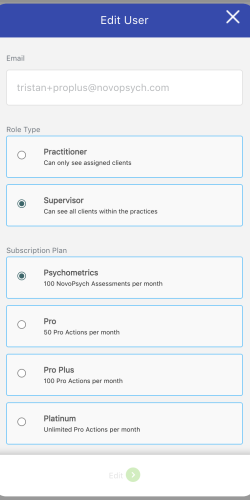
1. Add a New User

  • Click Add User.

  • Enter the required details (name, email, role, and plan).

  • Click Save. The new user will receive an invitation email.

NovoPsych Edit User dialog
 

Roles within a Practice Plan

  1. Account Manager (central account)
    • Manage payments for NovoPsych
    • Add and remove users (practitioners and supervisors) from the practice
    • View all clients and assign to practitioners 
    • Administer and view assessments for all clients
    • Manage privacy settings
    • Export data for all users/clients in CSV
  2. Supervisors
    • Add and remove users (practitioners and supervisors) from the practice
    • View all clients and assign to practitioners 
    • Administer and view assessments for all clients
  3. Practitioners
    • View clients that have been assigned to them or who they have added
    • Administer and view assessments for clients they have added, or who have been assigned to them

Removing a Practitioner

  • Locate the user to remove in the User Management section above

  • Click the Delete button (bin/trash icon).

  • Confirm the deletion. (⚠️ Note: Deleted users lose access immediately. Their historical data remains securely stored on the central account)

If you’d like to make changes to the Account Manager (eg. deleting or swapping the role with another practice user),  kindly contact our support team at [email protected]